Fathom
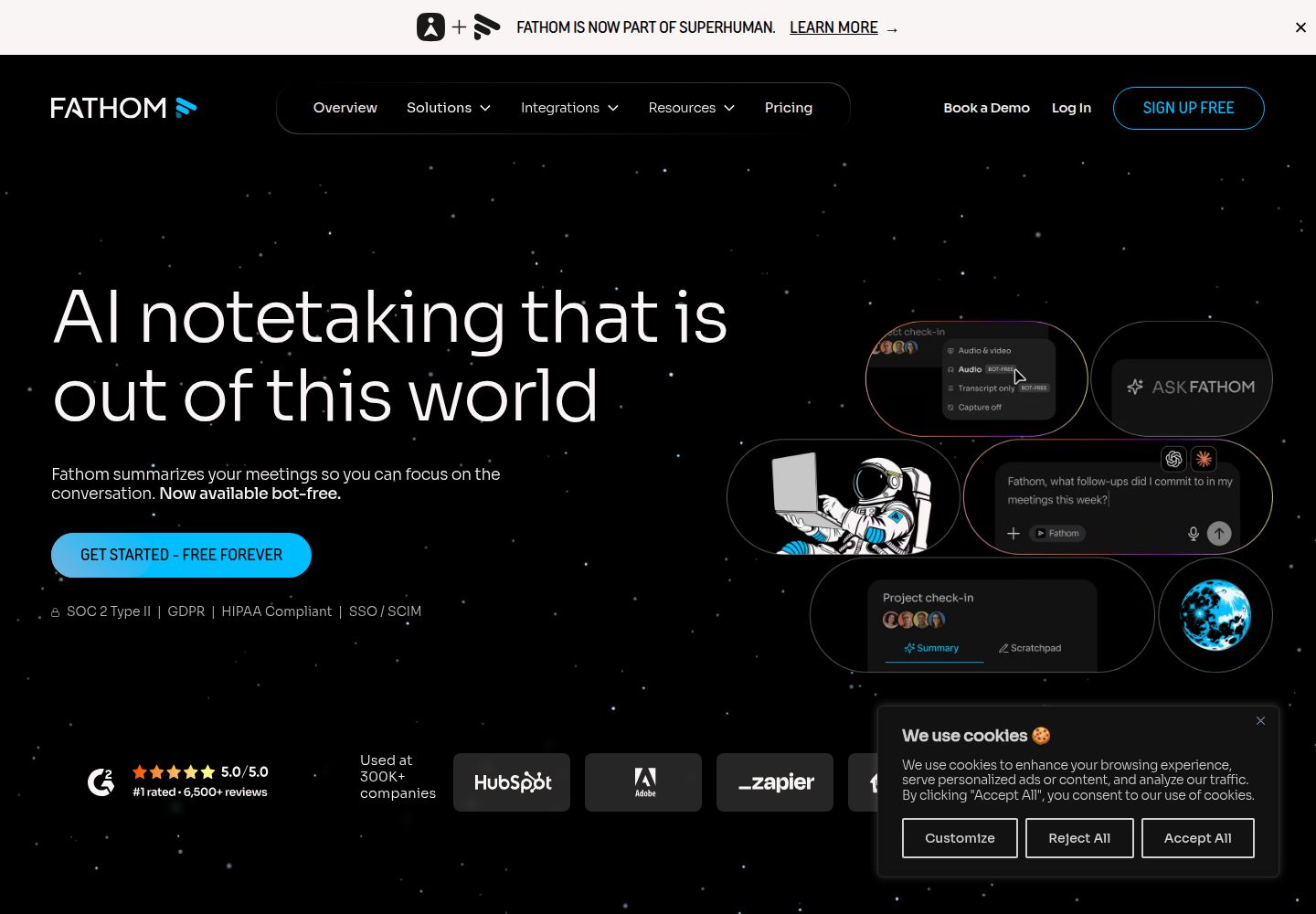
A meeting recorder that creates searchable transcripts, summaries, and highlights for supported calls.
What to know before choosing
Good fit
People who want to review and share summaries from supported online meetings.
Limits and trade-offs
Platform and meeting-type support is bounded. Transcripts are copied rather than downloaded directly, and consent-email behavior is conditional.
Plans and free allowances
Fathom lists a free plan with unlimited recordings and transcriptions. Check the official plan page for current paid features and eligibility.
Evidence
Official plan details ↗ (reviewed 2026-10-15), Official transcript copy guidance ↗ (reviewed 2026-10-15), Official consent-email behavior ↗ (reviewed 2026-10-15), Official supported platforms and meeting types ↗ (reviewed 2026-10-15)
Official product, plan, and help pages reviewed; no authenticated product test. Last source review is not a date of product testing.
A closer look at Fathom
Fathom captures supported online meetings and produces transcripts, summaries, and highlighted moments. Its free offer may suit routine call review, but verify platform support and the transcript-copy step before adopting it for an archive workflow.
Editorial guidance based on published documentation. The workflow below is a suggested starting point, not a measured product result.
When to choose Fathom
- A remote team wants an AI recap after a supported video call.
- A user wants to mark useful moments and share a short clip.
When to choose something else
- A user needs a direct TXT or SRT transcript download without copy and paste.
- A team mainly uses Chromebook, Linux, phone calls, webinars, or breakout rooms.
A practical starting workflow
- Check platform support and choose an available capture mode.
- Give attendees clear notice and confirm the host permits recording.
- Review summary, speaker labels, and action items against the transcript.
- Use Copy Transcript and paste it into a document if a transcript file is needed.
- Share only the reviewed recap or clip with its intended audience.
Check before committing
- Transcripts cannot be downloaded directly; the documented route is copy and paste.
- Consent emails are conditional and do not cover every meeting, including same-day meetings described in help.
- The support guide lists device and meeting-type exclusions; confirm compatibility.
Common questions
Can I download a transcript file directly?
No. Fathom directs users to copy the transcript and paste it into another app.
Does Fathom notify every attendee automatically?
No; consent emails are conditional, so users remain responsible for notice.
Can I use Fathom for phone calls or webinars?
The support article lists unsupported platforms and meeting types, including phone calls and webinars.
Compare approaches for this task
- Fireflies AI — Teams that search meeting records and route reviewed summaries into follow-up work.
- MeetGeek — Teams that want meeting notes with configurable sharing and retention practices.
- Tl;dv — Teams that want to search calls, clip useful moments, and share reviewed evidence.